

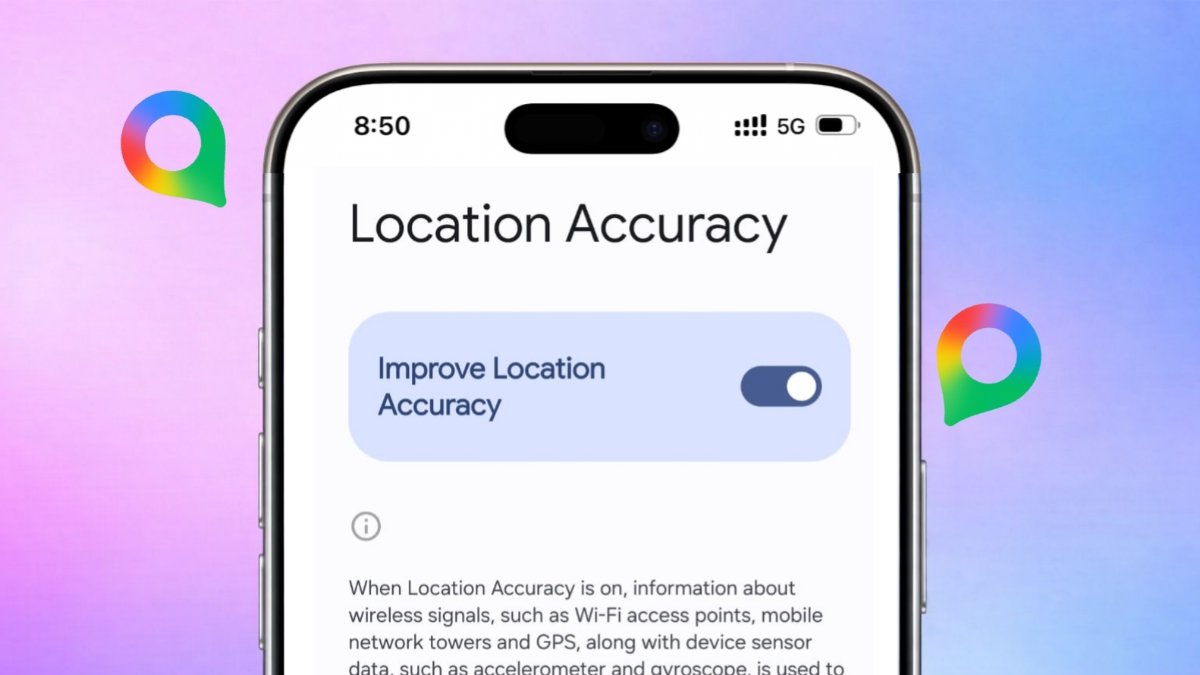
Accurate location helps many phone features work. Navigation, alerts, and searches need correct positioning.
Several settings can Fix Location Accuracy on Android.
also read: How to Change Your Email on Instagram for Better Account Security
Fix Location Accuracy Using Built-In Features
Android phones use several location technologies together. These technologies help determine your current position. When location becomes inaccurate, small adjustments help.
The easiest way to check location accuracy exists. Open Google Maps on your Android device. The blue dot shows your current location. This dot helps verify positioning accuracy quickly.
If the blue dot does not appear, check location services. Tap the location button inside Google Maps. The app will search for location again.
How Android Finds Your Location
Android devices use different sources together.
- GPS satellites provide location information.
- Nearby Wi-Fi networks improve positioning results.
- Cell towers support location identification.
- Phone sensors help improve overall accuracy.
GPS remains the primary location technology available. It uses radio signals from satellites above. Around twenty-six GPS satellites orbit Earth today. New satellites replace older satellites when needed.
A phone receiver needs multiple satellite signals. At least four satellites determine location correctly. Under normal conditions, GPS works very well.
However, GPS accuracy changes in some places. Buildings may block important satellite signals. Underground areas can also reduce performance. Indoor locations sometimes affect GPS accuracy greatly.
Google Maps combines several location sources together. This approach creates better positioning results overall. Wi-Fi and mobile networks add extra accuracy.
Understanding The Blue Dot On Maps
The blue dot represents your current location. It appears whenever Maps finds you successfully.
Sometimes a light blue circle appears. This circle shows possible location uncertainty. You may be anywhere inside that circle. A smaller circle means better accuracy levels. A larger circle means less certainty exists.
Sometimes the blue dot becomes gray instead. This means Maps cannot locate you properly. The app may show your previous location.
Large buildings may affect positioning accuracy significantly. Parking garages can also block signals completely.
With High Accuracy Mode
High Accuracy mode provides better location results. This feature combines several technologies together.
Enable High Accuracy Settings
Follow these simple steps carefully:
- Open the Settings app.
- Tap the Location option.
- Turn Location access on.
- Open Location settings options.
- Choose High Accuracy mode.
Some Android devices show different menu names. However, the process remains very similar.
Google Location Accuracy should remain enabled always. This feature uses extra information sources. Wi-Fi networks improve location measurements significantly. Mobile networks also improve location calculations.
If disabled, the phone mainly uses GPS. GPS alone may not always work perfectly. Indoor locations often reduce GPS performance.
Enable Wi-Fi And Bluetooth Scanning
Many Android phones include scanning features.
- Turn on Wi-Fi scanning.
- Turn on Bluetooth scanning.
- Keep Location access enabled.
These features improve location accuracy further. Nearby devices provide additional positioning information. This helps determine location more precisely.
Wi-Fi should remain switched on whenever possible. Nearby wireless networks improve location performance. Even without connecting, Wi-Fi remains helpful.
By Calibrating Compass
Compass calibration improves direction accuracy greatly. Incorrect compass readings affect navigation experiences.
Why Compass Calibration Matters
Sometimes the blue beam looks very wide. Other times it points incorrectly. This usually indicates compass accuracy problems.
Google Maps can identify these issues easily. A low compass accuracy warning may appear. Calibration usually fixes these problems quickly.
Steps To Calibrate The Compass
Follow these instructions carefully:
- Open Google Maps.
- Tap the blue location dot.
- Open the location information screen.
- Select the Calibrate option.
- Move the phone in figure-eight motions.
Repeat the movement several times slowly. The compass should improve afterward. The beam becomes narrower and accurate.
Some devices need several calibration attempts. Repeat the process whenever required.
Restart Your Android Device
Restarting helps solve temporary location problems. It refreshes important phone services automatically.
Use these simple steps:
- Hold the power button.
- Select the Power Off option.
- Wait a few moments.
- Turn the device on again.
After restarting, check Maps once more. Many location issues disappear after restarting.
Manage Location Permissions For Better Control
Location services provide many useful benefits. However, not every app needs access.
Android allows users to review permissions easily. This helps improve privacy and control.
Check Recent Location Requests
Open Location settings on your phone. Look for Recent Location Requests. This section shows apps using location recently.
You can review app activity carefully. This helps identify unnecessary location access.
Control App Location Permissions
Android provides flexible permission controls.
Available options usually include:
- Allow all the time.
- Allow while using the app.
- Do not allow access.
Tap any app from the list. Change permissions based on your needs. Disable location access when unnecessary.
This helps improve privacy and security. It also reduces unnecessary background activity.
Why Location Services Remain Important
Location services support many useful features.
These include:
- Google Maps navigation.
- Correct time zone settings.
- Local search results.
- Earthquake alerts.
- Emergency location services.
Emergency services especially benefit from location access. Accurate positioning helps during urgent situations.
As We Conclude
Fix Location Accuracy on Android using simple settings. Enable High Accuracy mode and calibrate regularly.
Keep Wi-Fi active and manage permissions wisely. These steps improve location performance and reliability.

🥰🥰