
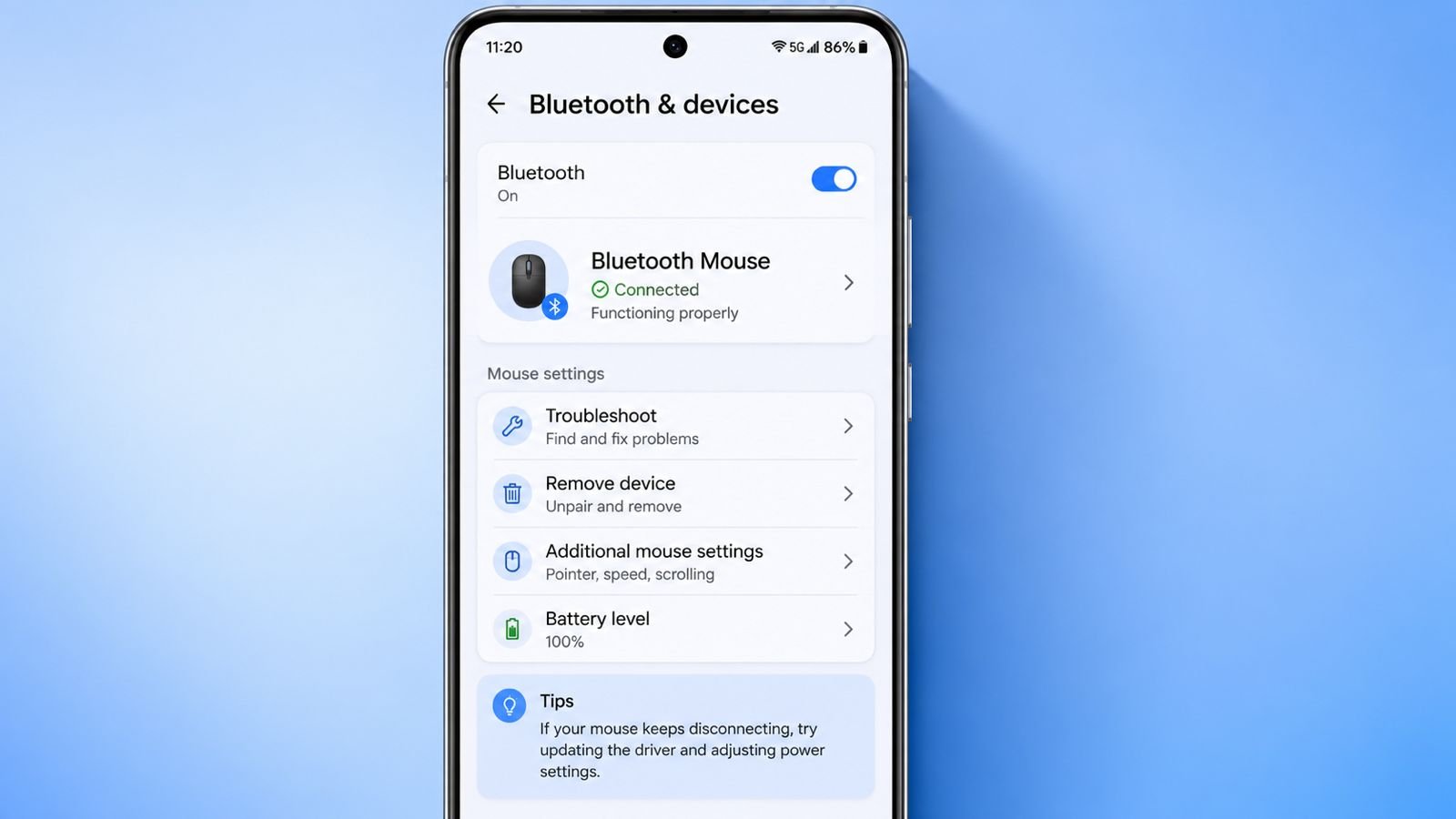
Fix if Bluetooth Mouse Keeps Disconnecting using simple Windows settings today. Random disconnects interrupt work, gaming, and everyday computer tasks.
Many users blame their mouse without checking Windows settings. Small system changes often solve this frustrating connection problem completely.
Fix if Bluetooth Mouse Keeps Disconnecting by Changing Power Settings
Windows power saving causes many Bluetooth problems
Windows automatically saves battery whenever possible. It powers down unused hardware without warning users. Unfortunately, Bluetooth adapters often become unnecessary victims. This causes repeated mouse disconnects throughout the day.
Many laptops enable this feature by default. The setting stays hidden inside Device Manager. Most users never notice this important option.
Disabling this feature keeps Bluetooth active continuously. Stable power means stable wireless mouse connections. Many users report instant improvements after changing it.
Steps to disable Bluetooth power management
Follow these simple steps carefully.
- Right-click the Start button.
- Open Device Manager immediately.
- Expand the Bluetooth category.
- Right-click your Bluetooth adapter.
- Select Properties from the menu.
- Open the Power Management tab.
- Uncheck the power-saving option.
- Click OK to save changes.
- Reconnect your Bluetooth mouse.
Many computers use Intel Wireless Bluetooth adapters. Other brands follow identical settings and steps.
Check USB Bluetooth dongles carefully
Some users connect external Bluetooth USB adapters. Windows may still disable USB power automatically. This creates identical connection problems again.
Open Device Manager once more. Expand Universal Serial Bus Controllers carefully. Open every listed USB Root Hub. Disable the same power-saving option everywhere.
This prevents Windows from disconnecting USB ports unexpectedly.
Disable USB Selective Suspend
Windows also uses USB Selective Suspend. This feature reduces USB power automatically. Unfortunately, wireless receivers sometimes stop responding correctly.
Open the Control Panel first. Open Power Options afterward. Find USB Selective Suspend settings. Change this feature to Disabled completely.
Many wireless mouse issues disappear immediately afterward.
Battery Saver may undo previous fixes
Battery Saver limits hardware performance aggressively. Bluetooth adapters sometimes receive reduced operating power. This causes unexpected disconnects during daily use.
Check Battery Saver settings carefully. Disable aggressive battery optimization whenever possible. This keeps Bluetooth connections much more reliable.
Solve By Updating Drivers
Outdated drivers create unstable wireless connections
Old Bluetooth drivers often cause random problems. Driver bugs affect connection stability significantly. Installing updated drivers usually improves reliability immediately. Updating drivers requires only several minutes.
Follow these easy instructions.
- Open Device Manager.
- Expand the Bluetooth category.
- Right-click your Bluetooth adapter.
- Choose Update Driver.
- Select Search Automatically for Drivers.
- Install available driver updates.
Restart your computer after installation finishes.
Firmware updates improve device stability
Some manufacturers release firmware updates regularly. These updates improve wireless communication significantly. They also remove hidden software bugs.
Many companies provide official update software. Logitech offers Firmware Updater for supported products. Razer provides updates through Razer Synapse software.
Always install official firmware updates carefully.
Fix by Reducing Wireless Interference
Distance affects Bluetooth performance greatly
Bluetooth works best over shorter distances. Keep your mouse close whenever possible. Stronger signals produce fewer connection interruptions.
Around thirty centimeters gives excellent performance. Longer distances increase signal loss noticeably.
Remove nearby interference sources
Many devices share similar wireless frequencies. These devices compete with Bluetooth constantly.
Common interference sources include:
- Wi-Fi routers
- Bluetooth speakers
- Wireless keyboards
- Other Bluetooth accessories
- USB 3.0 devices
Move these devices slightly apart. Even twenty centimeters sometimes improves stability greatly.
USB 3.0 ports create wireless interference
USB 3.0 ports sometimes create radio interference. External Bluetooth adapters suffer most frequently. Nearby USB devices increase signal problems further.
Try another USB port first. Use a short USB extension cable. Extra distance reduces interference considerably.
Desktop computer placement matters
Rear USB ports remain inside metal computer cases. Metal blocks wireless signals surprisingly well. Signal strength becomes weaker automatically.
Use front USB ports whenever available. Place receivers closer to your mouse.
Avoid generic USB hubs
Cheap USB hubs sometimes supply unstable power. Bluetooth receivers perform poorly through weak hubs. Test direct motherboard USB ports instead.
Stable power improves wireless reliability immediately.
Fix by Using Extra Troubleshooting
Check mouse battery first
Low batteries create random disconnects frequently. Weak power affects wireless communication first. Complete failure happens much later.
Replace disposable batteries immediately. Recharge rechargeable batteries fully before testing.
Use your mouse normally afterward. Test performance for thirty minutes minimum.
Video calls increase hardware workload
Video meetings stress computers heavily. CPU usage increases significantly during calls. USB performance sometimes becomes unstable temporarily.
Choose Balanced or High Performance mode. Avoid Power Saver during important meetings.
Bluetooth and 2.4GHz mice differ
Bluetooth mice have different connection causes.
Bluetooth problems usually include:
- Adapter power management
- Bluetooth interference
- Long operating distance
- Outdated Bluetooth drivers
Wireless USB mice usually experience:
- USB selective suspend
- USB Root Hub power saving
- Receiver placement problems
- Low battery levels
- USB interference
Understanding your mouse type helps troubleshooting faster.
Test another computer
Connect your mouse to another computer. Watch for identical disconnecting problems carefully.
If problems continue everywhere, hardware may fail. The receiver could become damaged internally. Mouse radio components may also malfunction.
Contact warranty support
Warranty service becomes useful after testing everything. Manufacturers inspect faulty wireless hardware professionally. Replacement may become necessary if damage exists.
Always check warranty status before purchasing another mouse.
As We Conclude
Fix if Bluetooth Mouse Keeps Disconnecting by changing Windows power settings first. Update drivers, reduce interference, and check battery condition.
Test hardware carefully before replacing your mouse. These simple fixes solve most wireless connection problems successfully.