
Add Music to Snapchat and improve every Snap with a musical touch. Music makes photos and videos feel better. It adds emotions, energy, and personal style.
Snapchat offers several music options for users. You can use songs, sounds, or recordings.
Add Music to Snapchat Using Built-In Songs
Snapchat includes a music feature for users. This feature helps create engaging content quickly. Users can add songs before sharing Snaps.
Open Snapchat Music Features
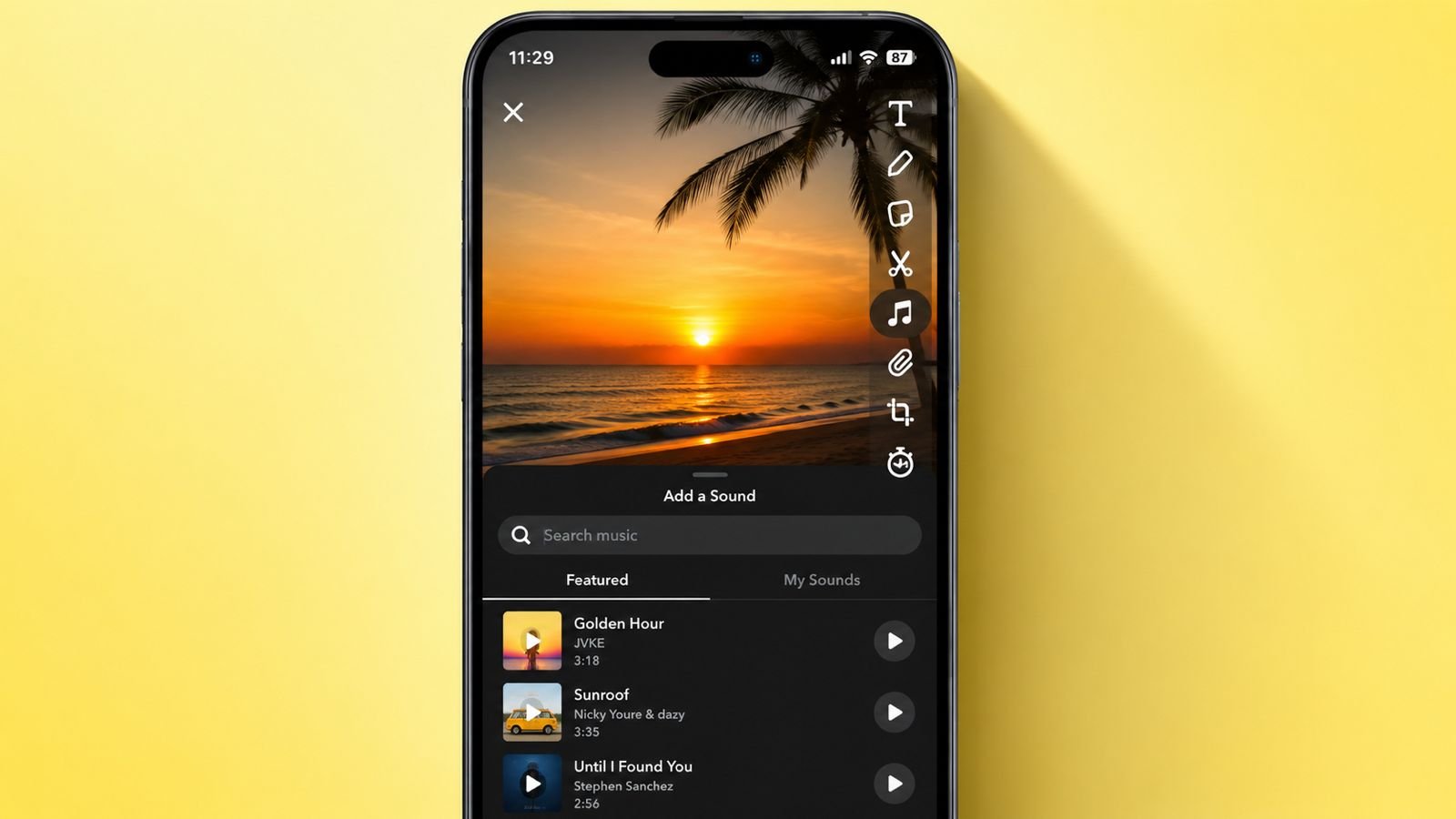
Start by opening the Snapchat application first. Go to the camera screen immediately afterward. Look at the upper-right menu area.
Tap the music note icon available there. Some devices show “Add a Sound” instead. Both options open the same section.
The music screen contains several useful categories. These categories help users find songs faster. Different tabs organize music in simple ways.
Available tabs usually include these sections:
- Featured music collection for users.
- Popular tracks trending on Snapchat.
- Playlists sorted by different genres.
- My Favorites for saved songs.
- Recents for previously used tracks.
- My Sounds for custom recordings.
These sections make song discovery much easier.
Search and Preview Songs
The built-in music library remains easy to use. Snapchat offers many licensed songs and sounds.
You can browse music using these methods:
- Explore available playlists carefully.
- Check popular songs from current trends.
- Browse music based on favorite genres.
- Use the search bar for songs.
- Enter artist names or keywords.
- Search using exact song titles.
Previewing songs before selection saves time. Tap the play button beside tracks. Listen carefully before making final choices. This helps users choose suitable music.
Select a Song for Your Snap
After finding a suitable track, continue further. Tap Next at the screen bottom area. A music slider then appears immediately.
The slider helps choose specific song sections. Users can select their favorite music moments easily. Move the slider until reaching desired lyrics. Choose the exact snippet needed afterward.
Once satisfied with the selection, continue recording. Create a new video or photo Snap. Existing Snaps also support music additions.
Complete Your Snap with Music
After selecting music, record your content. Snapchat automatically adds music information afterward. A song sticker appears on the screen. The sticker displays useful song information:
- Song title for identification.
- Artist name beside the title.
Users can move this sticker anywhere. Place it wherever the design looks better. Continue editing the Snap normally afterward. Additional editing options include:
- Filters for visual improvements.
- Stickers for creative effects.
- Text overlays for messages.
- Other Snapchat editing tools.
Finally, send the Snap to friends. Users may also publish it publicly.
Change Music Before Sharing
Sometimes selected music feels unsuitable later. Snapchat provides simple editing controls. If changes become necessary:
- Tap the X icon available.
- Remove the selected music instantly.
- Choose another track from the library.
- Restart the process when needed.
This flexibility helps create better final results.
Using Custom Sounds
Some users need sounds unavailable on Snapchat. Others prefer personal recordings for content. Snapchat supports custom sound creation features.
Create a New Custom Sound
Open the Snapchat music section first. Go to the Featured tab available there. Look for the Create Sound option. Tap the plus icon beside it.
Users then receive multiple sound choices. These options provide different recording methods.
Record Your Own Sound
Recording sounds directly remains very simple. This feature works for voices and effects. Follow these steps carefully:
- Select Record Sound from the menu.
- Tap the microphone recording button.
- Start speaking or making sounds.
- Capture desired audio clearly.
- Tap Record again when finished.
After recording, review the captured audio. Enter a suitable name afterward. Naming helps locate sounds later.
Tap Save Sound after completion. The custom sound becomes available instantly.
Upload Sound from Camera Roll
Another option uses existing video files. Users can extract audio from videos. To upload video audio:
- Select Upload from Camera Roll.
- Choose a video containing audio.
- Let Snapchat process the file.
- Save extracted audio afterward.
This option provides additional flexibility.
Make Custom Sounds Public
Snapchat includes a sharing feature too. Users may allow others access. A public sharing toggle appears available.
Enable it if desired afterward. Other users may discover your sound. Leave it disabled for private use.
Access Saved Sounds Later
Saved sounds remain available anytime afterward. Users can reuse them repeatedly. To locate saved sounds:
- Return to Snapchat camera screen.
- Tap the music note icon.
- Open the My Sounds section.
- Browse previously saved recordings.
Preview sounds before using them again. Tap play beside desired recordings. Select Next when satisfied afterward.
Use Custom Sounds in Snaps
Applying saved sounds remains straightforward. The process resembles normal music additions. Follow these simple steps:
- Select a saved custom sound.
- Tap Next to continue.
- Adjust the sound slider position.
- Record or upload a Snap.
- Add filters and enhancements.
- Share the finished content.
This method creates more personalized content.
Edit or Delete Saved Sounds
Managing saved sounds remains very easy. Snapchat provides editing and removal options.
Press and hold a saved sound. Additional options appear immediately. Available management options include:
- Edit sound name anytime.
- Change privacy settings easily.
- Delete sounds no longer needed.
These controls help organize sound collections.
Using Alternative Methods
Many users want songs unavailable officially. Some prefer personal music collections instead. Snapchat has limitations regarding direct imports.
Can You Add Music from Your Library?
Many users ask this common question. Unfortunately, direct imports remain unsupported currently. Snapchat does not currently allow:
- Direct music file imports.
- Local library song uploads.
- Personal audio file attachments.
Because of these restrictions, alternatives exist.
Use SendShort for More Audio Options
SendShort offers another useful solution. This platform supports external audio additions.
Many users choose SendShort for flexibility. It allows importing nearly any audio file. Follow these steps carefully:
- Create a free SendShort account.
- Upload your Snap to the platform.
- Open the Elements section.
- Select the Audio tab.
- Import preferred audio files.
- Adjust music placement properly.
- Export the completed Snap.
- Upload the result to Snapchat.
This method supports broader music choices.
Why Users Choose SendShort
SendShort offers features unavailable directly. Users gain more control over audio. Key benefits include:
- Support for custom audio files.
- Access to wider music selections.
- Greater flexibility during editing.
- Better control over sound choices.
These advantages attract many content creators.
Record Music Playing on Your Device
Another workaround remains very simple. It requires no additional software. Follow these basic steps:
- Open any music application.
- Start playing a desired song.
- Keep music playing continuously.
- Open Snapchat during playback.
- Begin recording a video Snap.
- Capture music with video naturally.
The song is recorded through device microphones. Snapchat saves music within recorded videos.
Limitations of This Method
Although simple, limitations still exist. Common drawbacks include:
- Lower overall audio quality.
- Background noises may appear.
- Music volume remains difficult to control.
- Results vary between devices.
For cleaner results, licensed Snapchat tracks help.
As We Conclude
Add Music to Snapchat using several easy methods. Use licensed songs for quick editing. Create custom sounds for personal creativity.
Alternative options provide greater flexibility. Music makes every Snap more engaging, memorable, and enjoyable.