
Many users share media through WhatsApp daily. The app previously compressed photos and videos automatically.
This reduced quality and removed important details. Recent updates now provide better sharing options. Users can send WhatsApp media in HD quality. They can also make HD quality default.
Why WhatsApp Introduced HD Media Sharing
WhatsApp has remained a popular messaging platform. Millions of people share media every day. Photos and videos often capture important memories. Many users noticed reduced quality after sharing.
For years, WhatsApp compressed media automatically. Users could not disable this compression feature. Images often appeared less sharp after sending. Videos sometimes lost clarity and fine details.
To improve user experience, WhatsApp introduced HD sharing. This feature allows better media quality retention. Photos appear clearer after reaching recipients. Videos also maintain improved resolution and detail.
The HD feature first became available in 2023. However, many users still overlook this option. Most people continue using default upload settings. As a result, the media remains compressed unnecessarily.
Benefits of HD Media Sharing
HD media offers several useful advantages.
- Better photo sharpness.
- Improved video clarity.
- More visible image details.
- Better viewing experience.
- Improved sharing of important memories.
- Higher quality media in conversations.
This feature helps preserve moments more effectively.
How to Setup
WhatsApp now allows automatic HD uploads. Users no longer need manual selection repeatedly.
Before enabling this feature, update WhatsApp first. Open the Google Play Store immediately. Search for WhatsApp and check updates. Install the latest available version carefully.
WhatsApp version 2.24.9.14 or newer works. Using newer versions ensures proper functionality.
Steps to Enable HD Quality Default
Follow these simple instructions carefully.
- Open WhatsApp on your smartphone.
- Tap the three-dot menu button.
- Open the Settings section.
- Select Storage and Data.
- Tap Media Upload Quality.
- Choose HD Quality.
- Save the selected option.
- Restart WhatsApp after completing changes.
After restarting, media uploads use HD quality. This setting applies to future media sharing.
Important Note About Settings
Testing revealed one interesting behavior. WhatsApp may remember recent quality selections. Users should understand how this works.
For example, HD quality may remain active. Later, users manually select standard quality. WhatsApp may switch back to standard uploads. Therefore, checking settings occasionally remains helpful.
How Android Users Can Send HD Media
Android users have complete access available. They can send HD media manually anytime.
The process works for new media. It also works for existing files.
Send New Photos or Videos
Open any personal or group conversation. Tap the camera icon available inside chat. Capture the desired photo or video.
Select the HD Media option afterward. Choose HD Quality before sending media. Finally, press the send button.
Send Existing Photos or Videos
Open a chat inside WhatsApp. Tap and hold the paperclip attachment icon. Select photos or videos from storage.
Tap HD Media before sharing files. Choose HD Quality from available options. Press send to complete the process.
Android HD Sharing Advantages
Android users enjoy several useful benefits.
- Better image appearance.
- Improved video quality.
- Easy quality selection.
- Support for group chats.
- Support for private chats.
- Better preservation of details.
These benefits improve daily communication significantly.
How iPhone Users Can Send HD Media
iPhone users can use identical features. WhatsApp provides similar options on iOS.
The HD feature remains easy to access. Users can activate it quickly.
Send New Photos or Videos
Open any WhatsApp conversation first. Tap the camera icon inside chat. Capture the desired photo or video.
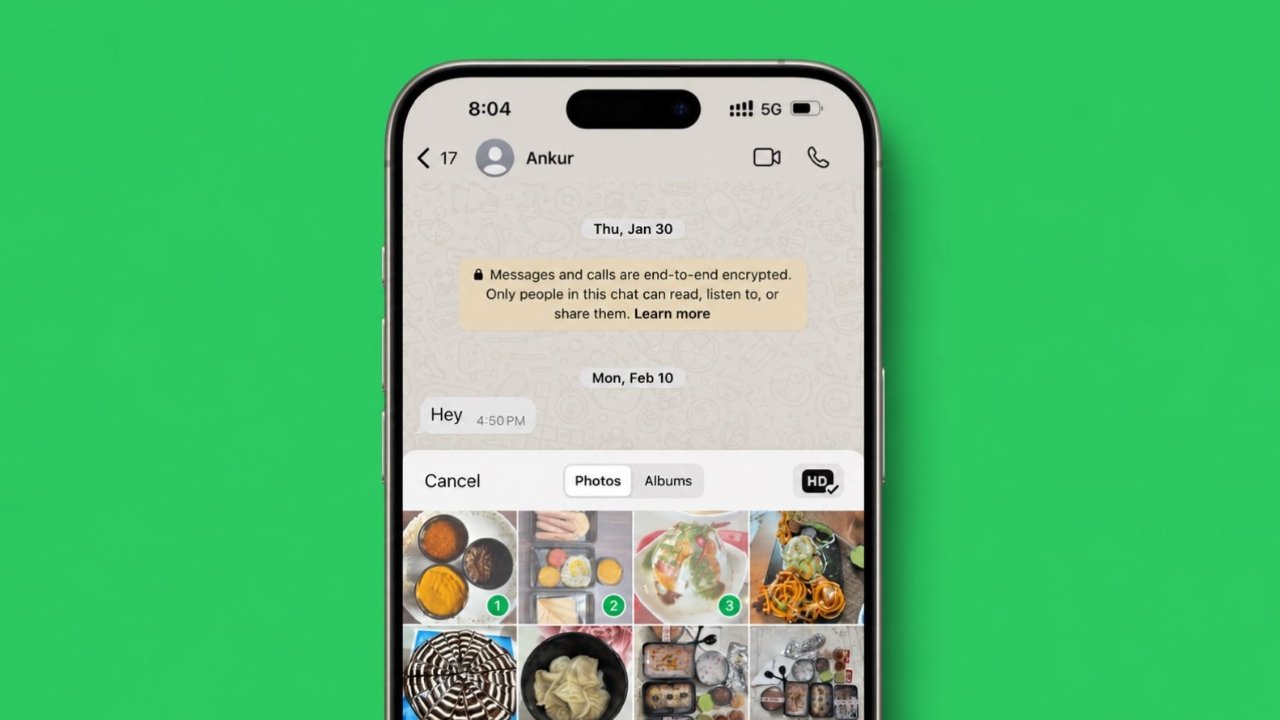
Tap HD Media before sending content. Select HD Quality from available choices. Press send to share media.
Send Existing Photos or Videos
Open an individual or group chat. Press and hold the plus attachment icon. Choose desired photos or videos.
Tap HD Media within sharing options. Select HD Quality before uploading media. Tap send to complete sharing.
Set HD Quality as Default
iPhone users can also automate HD uploads. Follow these simple steps:
- Open WhatsApp Settings.
- Select Storage and Data.
- Tap Media Upload Quality.
- Choose HD Quality.
Future uploads will use better quality.
Things to Know Before Using HD Quality
HD media improves visual quality greatly. However, users should understand certain limitations.
HD Files Are Much Larger
HD photos contain additional visual information. Therefore, file sizes become much larger.
According to WhatsApp information, HD photos may become six times larger. This increased size affects uploads significantly.
More Data Usage
Larger files require more internet data. Mobile data consumption may increase noticeably.
Users with limited data plans should remember this. Frequent HD uploads consume additional bandwidth.
Longer Upload Times
Large files need more upload time. This becomes noticeable during slow connections.
Users with fast internet notice little delay. Slower networks may require additional waiting.
Works in Group and Personal Chats
The HD feature supports every chat type. Users can share HD media privately. They can also share it inside groups.
This flexibility improves overall usefulness considerably.
Perfect for Important Moments
HD quality works especially well here:
- Travel photographs.
- Family celebrations.
- Birthday memories.
- Wedding pictures.
- Event recordings.
- School projects.
- Business presentations.
These situations benefit from better media quality.
Why Your WhatsApp Media Is Not HD
Some users still experience compressed uploads. Several reasons may explain this problem.
Possible Causes
- WhatsApp requires updating.
- HD quality remains disabled.
- Standard quality was selected manually.
- Settings changed accidentally.
- Internet issues interrupted uploads.
Checking settings often solves these problems.
Quick Fixes
Try these simple solutions:
- Update WhatsApp immediately.
- Restart the application.
- Verify upload quality settings.
- Enable HD quality again.
- Check internet connection stability.
Most users resolve issues quickly.
The Bottom Corner
Sending WhatsApp Photos to Videos in HD feature improves photo and video quality. Android and iPhone users can enable it.
Remember that HD uploads require more data. Larger files may upload more slowly. Still, better clarity makes sharing more enjoyable.